CHAI on AWS Marketplace · Setup Guide.
Launch the CHAI appliance from your AWS account, configure it, and reach the console. If you're brand-new: CHAI is CloudHedge's AI platform for assessing (DART) and migrating (Flow) enterprise applications.
By the end CHAI is running on your EC2 instance, you've logged in, and the App Host is configured — you're ready to start your first project.
An AWS account
With permissions to launch EC2 instances and subscribe to AWS Marketplace AMIs.
An SSH client
You'll SSH into the instance once it's running. Have an existing key pair or create one during launch.
A real email inbox
Becomes your CHAI login and receives system notifications. Use one you actually check.
Find the CHAI AMI in the marketplace.
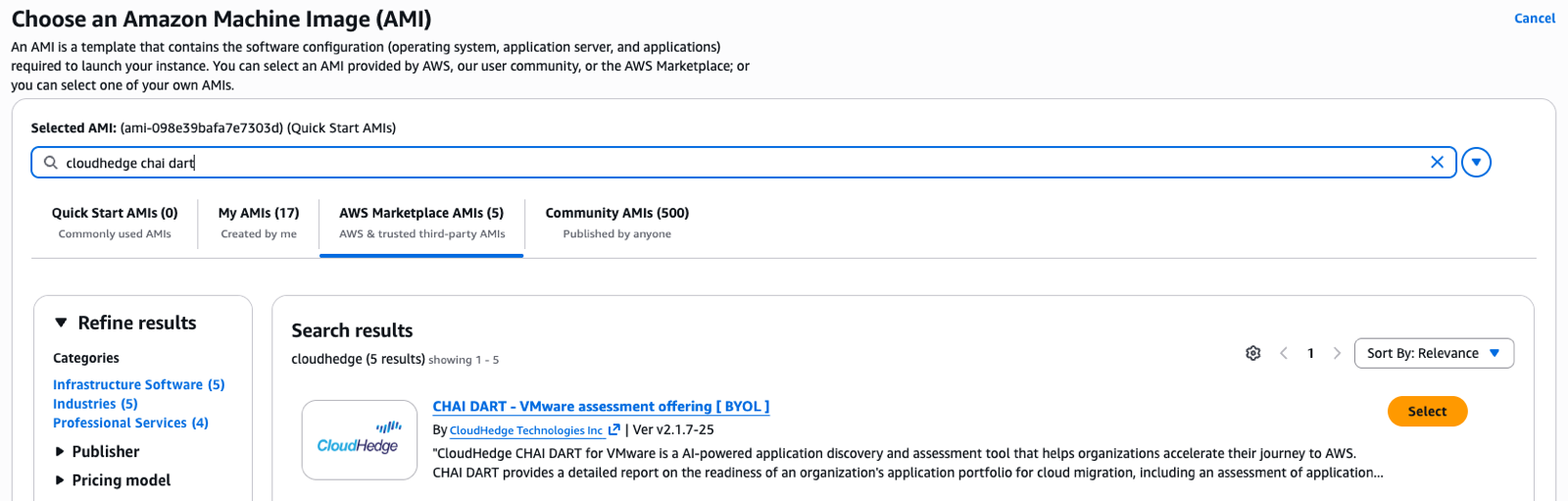
In the AWS console, go to EC2 → Launch Instance. Under Application and OS Images (Amazon Machine Image), type "cloudhedge chai" in the search box and switch to the AWS Marketplace AMIs tab.
Filter by vendor "CloudHedge Technologies Inc" if your account shows other matches. There are five CloudHedge listings:
AWS console · choose AMI
 1
2
3
1
2
3
Configure the EC2 instance.
After picking an AMI, AWS walks you through the standard Launch Instance flow. The values that matter for CHAI:
- Instance type —
m7i.xlarge· 4 vCPU · 16 GB RAM - Key pair — select existing or create + download (you'll need it for SSH)
- Security group — open
22(SSH) and443(HTTPS console) for inbound - Storage — 150 GB minimum (the default)
Recommended config
Set login credentials over SSH.
SSH into the running instance with your key pair, check the appliance is up, and set the email + password you'll use to log into the CHAI console.
Two command sets — depending on whether your AMI ships with Docker or Podman. The chctl update config command at the end is the same on both.
The --email value becomes your username at the login screen and the address that receives notifications. Use a real inbox you control.
Terminal · ec2-user@instance
Open the CHAI console.
The appliance is now reachable on HTTPS. Open one of these URLs in any browser:
https://<public_ip>https://<public_dns>https://<private_ip>(if you're inside the VPC)
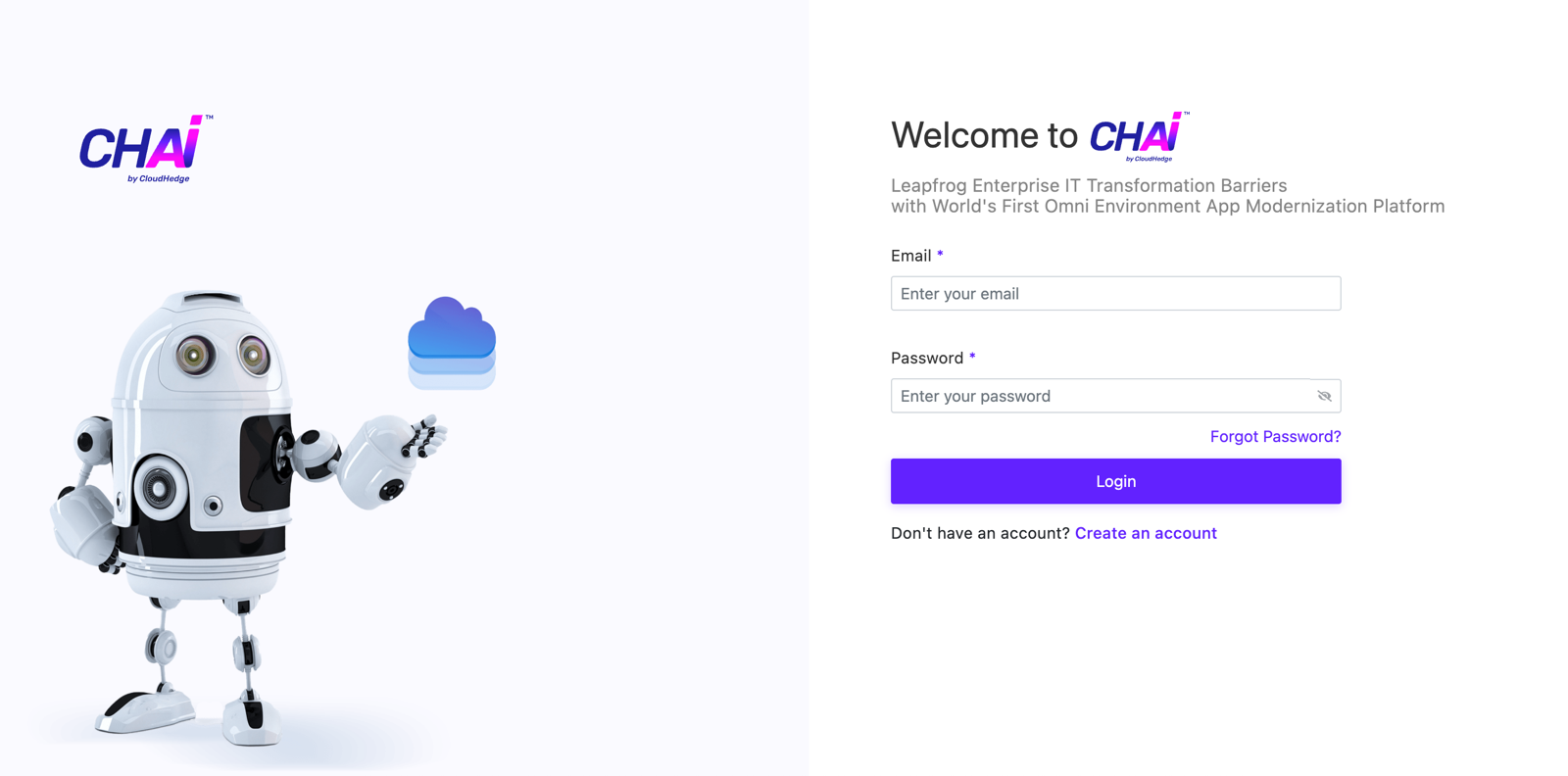
Sign in with the email and password you set in step 3. The appliance ships with a self-signed TLS cert, so your browser will warn you the first time — that's expected.
CHAI · login
Tell CHAI its own address.
After your first login, CHAI needs to know where it's running so its internal services can talk to each other. You set this once and you're done.
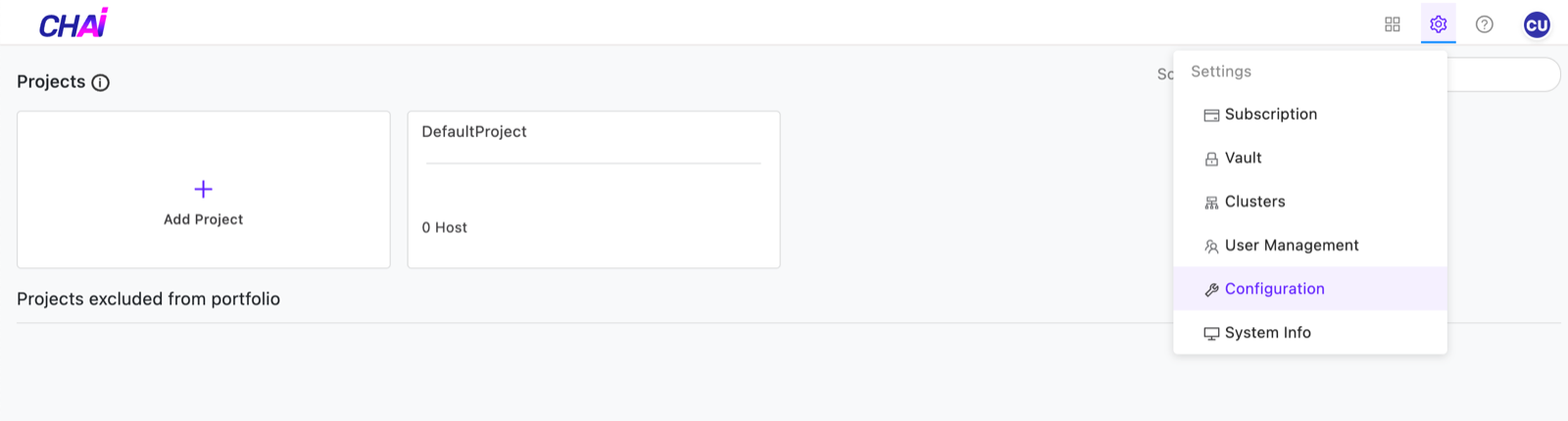
From the projects view, click the gear icon in the top-right corner and choose Configuration from the menu.
On the App Host tab, enter https://<your-EC2-IP> in the Callback URL field — the same address you logged in with — and click Save URL.
Settings · open Configuration
 1
2
1
2
App Host · save callback URL
 1
2
3
1
2
3
You're set up.
Your CHAI appliance is running, configured, and ready for your first project. The section below is troubleshooting — skip it if everything worked, or read on if login returned a "Server pool is destroyed" error.
"Server pool is destroyed" on login.
If the login screen returns this error, the appliance stack didn't come up cleanly. Stop it, start it, retry login. Order matters — give it a moment to settle.
For everything else, the full product documentation and the CloudHedge support team are below.
Restart sequence
Past first login? Keep going.
Full product documentation covers configuration, integrations, and the CHAI agent CLI. For procurement or scoped engagements, reach the CloudHedge team directly.